

Hi there!
This is Anna Rocca from the Holoearth Tourism Agency.
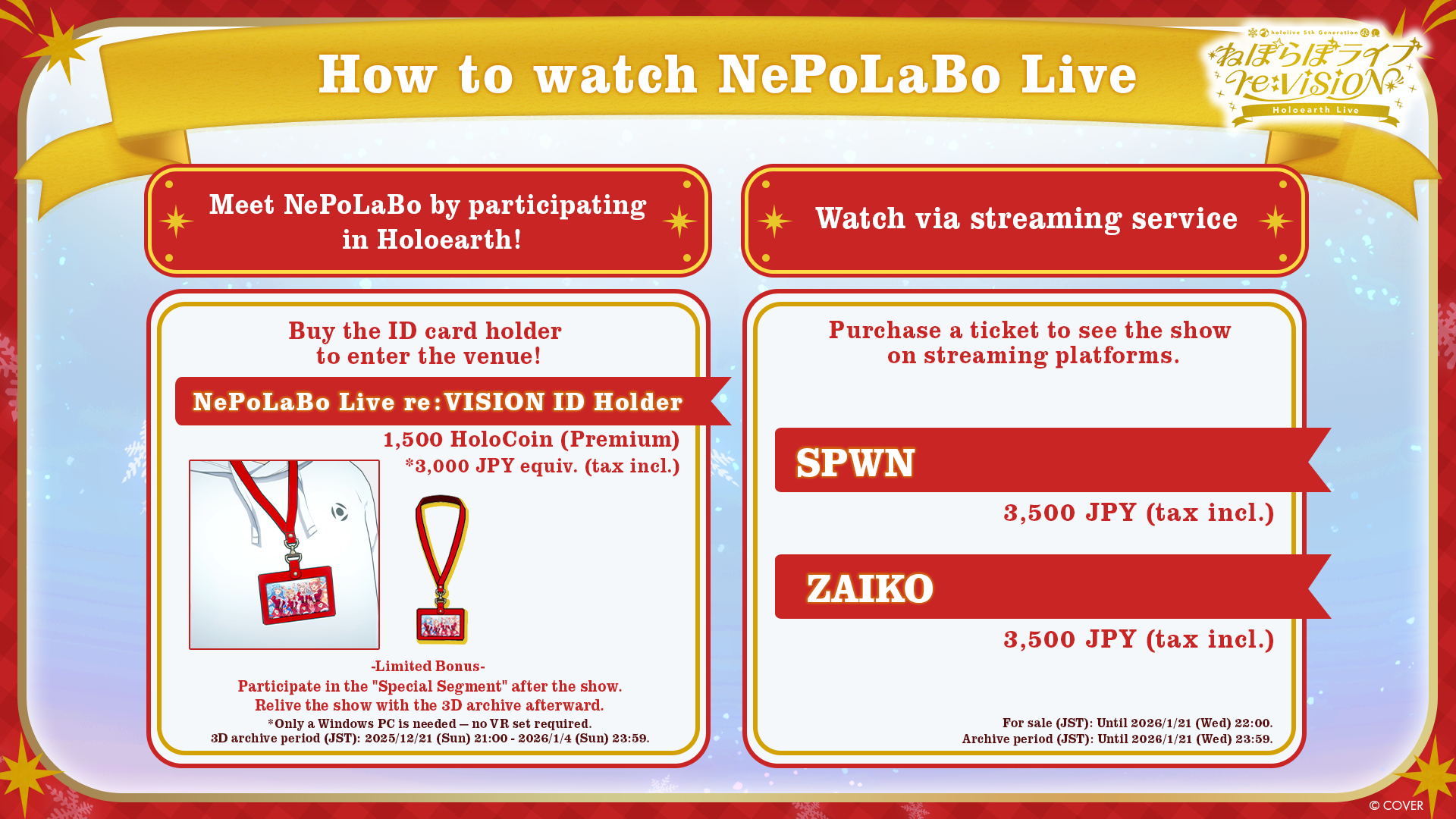
With the upcoming virtual concert “NePoLaBo Live re:VISION Holoearth Live” on Sunday, December 21, 2025, I put together a brief guide for those who are new to Holoearth or who may be unfamiliar with how to use the service.
Please continue reading to be fully prepared for the day of the event!
To participate in the NePoLaBo Live concert in Holoearth, there are four things you will need to do, as listed below!
1. Download for PC (Windows).
2. Register an account with Google or Apple ID.
3. Purchase the “NePoLaBo Live re:VISION ID Holder” item in the shop in Holoearth.
4. Enter the “NePoLaBo re:VISION Holoearth Live” area in Holoearth after 18:00 (JST) on Dec 21 (Sun).
All that is needed to use Holoearth is a PC (Windows). No VR equipment is required.
See the download page for PC spec requirements.
Holoearth is only available for Windows.
Feel free to use the following as a detailed reference guide for how to use Holoearth and participate!
1: Installing Holoearth & Account Creation
The Holoearth application must first be downloaded and installed before using the service.
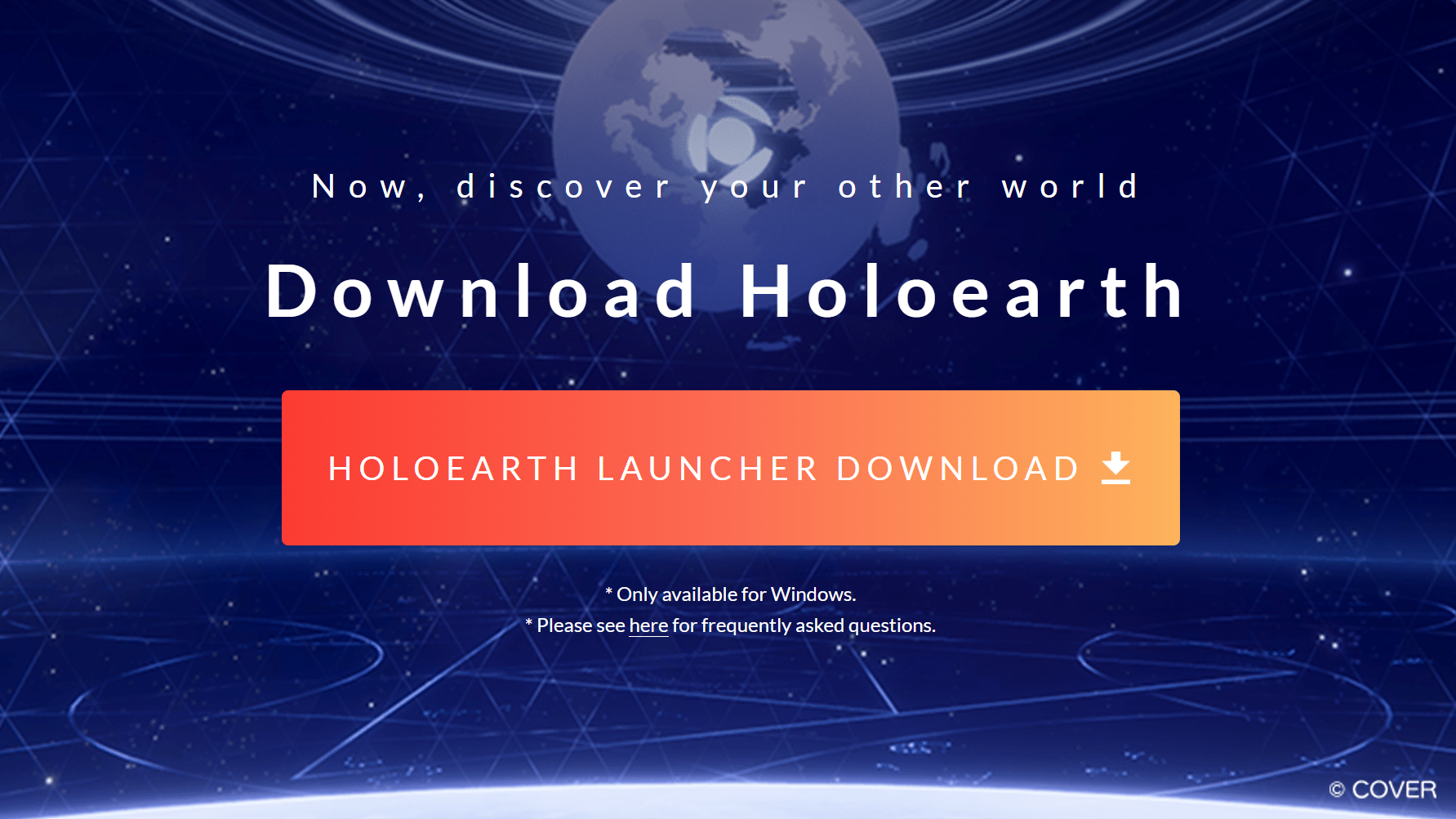
Download the Holoearth launcher from the download page
Download the Holoearth Launcher from the download page and install it.
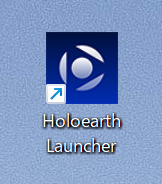
After installing the launcher, launch it via the “Holoearth Launcher” icon that was created.
Click “Install” to begin the installation of the main Holoearth application.
After installation, this button will become the “Start” button.
When an update is available, the same button will change to “Update.”
Holoearth launcher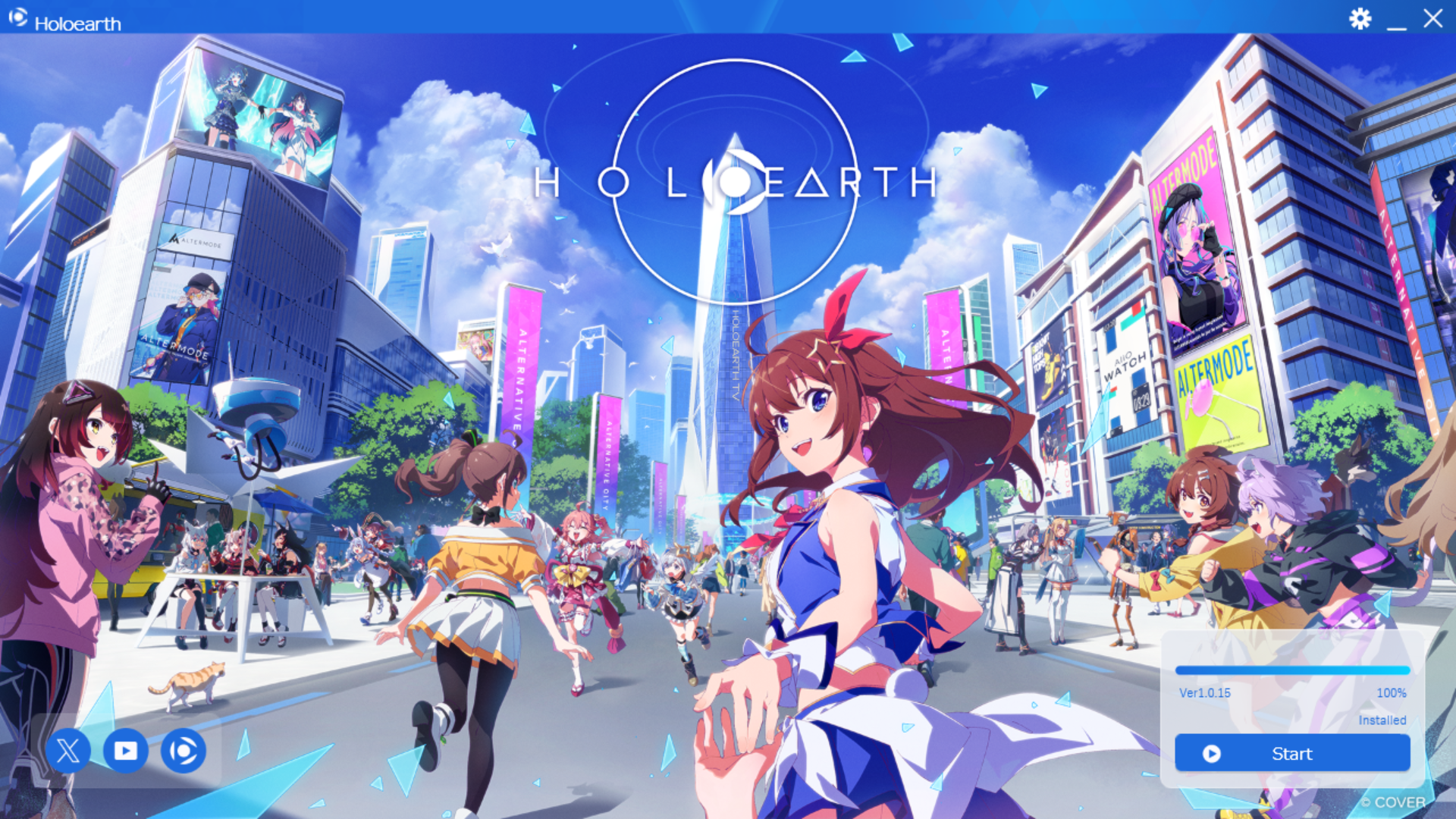
Launcher Installation Troubleshooting
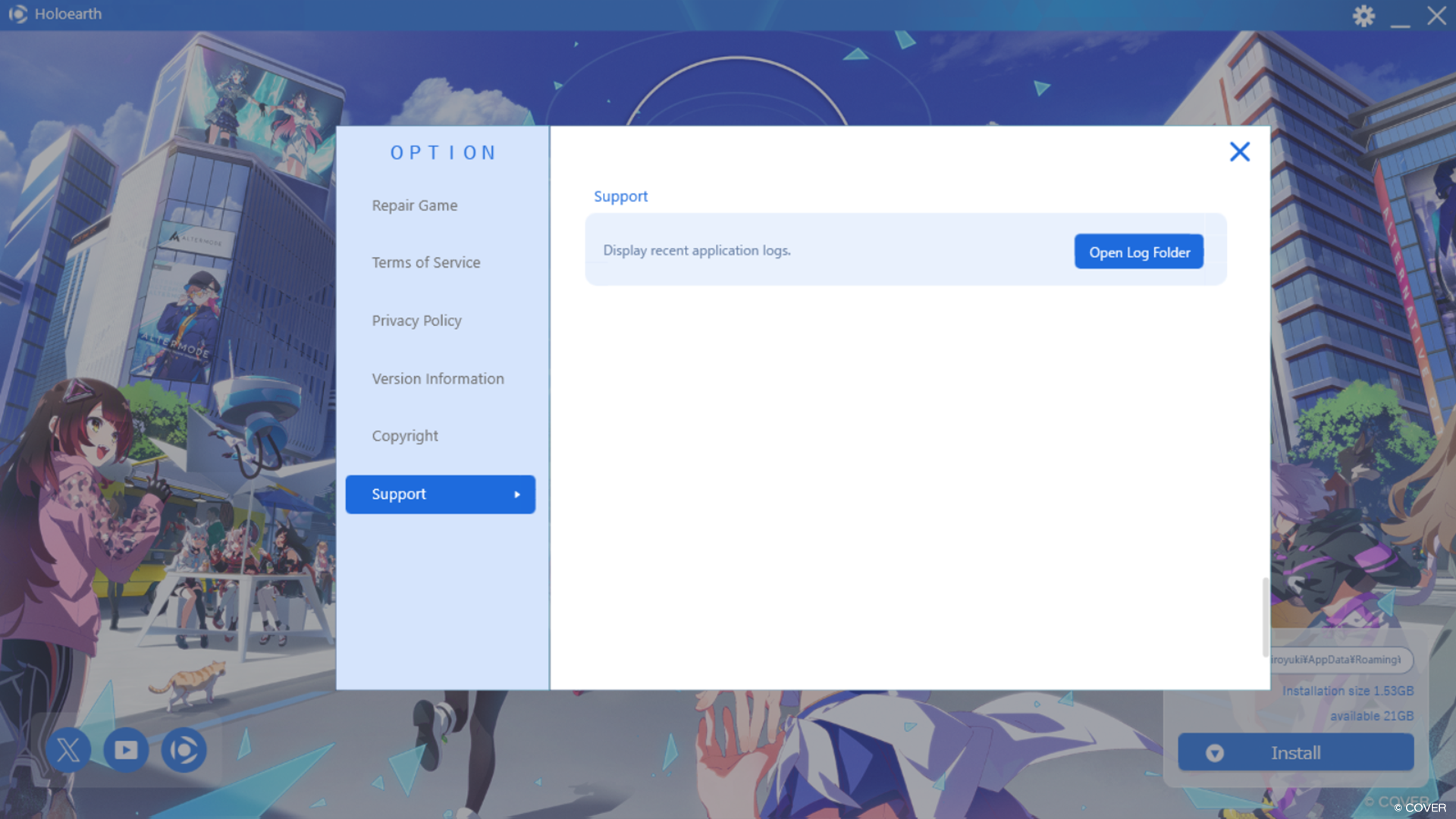
Click the gear icon in the upper right to open the launcher options menu, then choose “Support” from the menu and then “Open Log Folder” for the relevant error code that can be used when submitting a help inquiry.
Inquiry form.
Account Creation & Logging In
Once installed, the launcher will display a “Start” button, which will open your web browser.
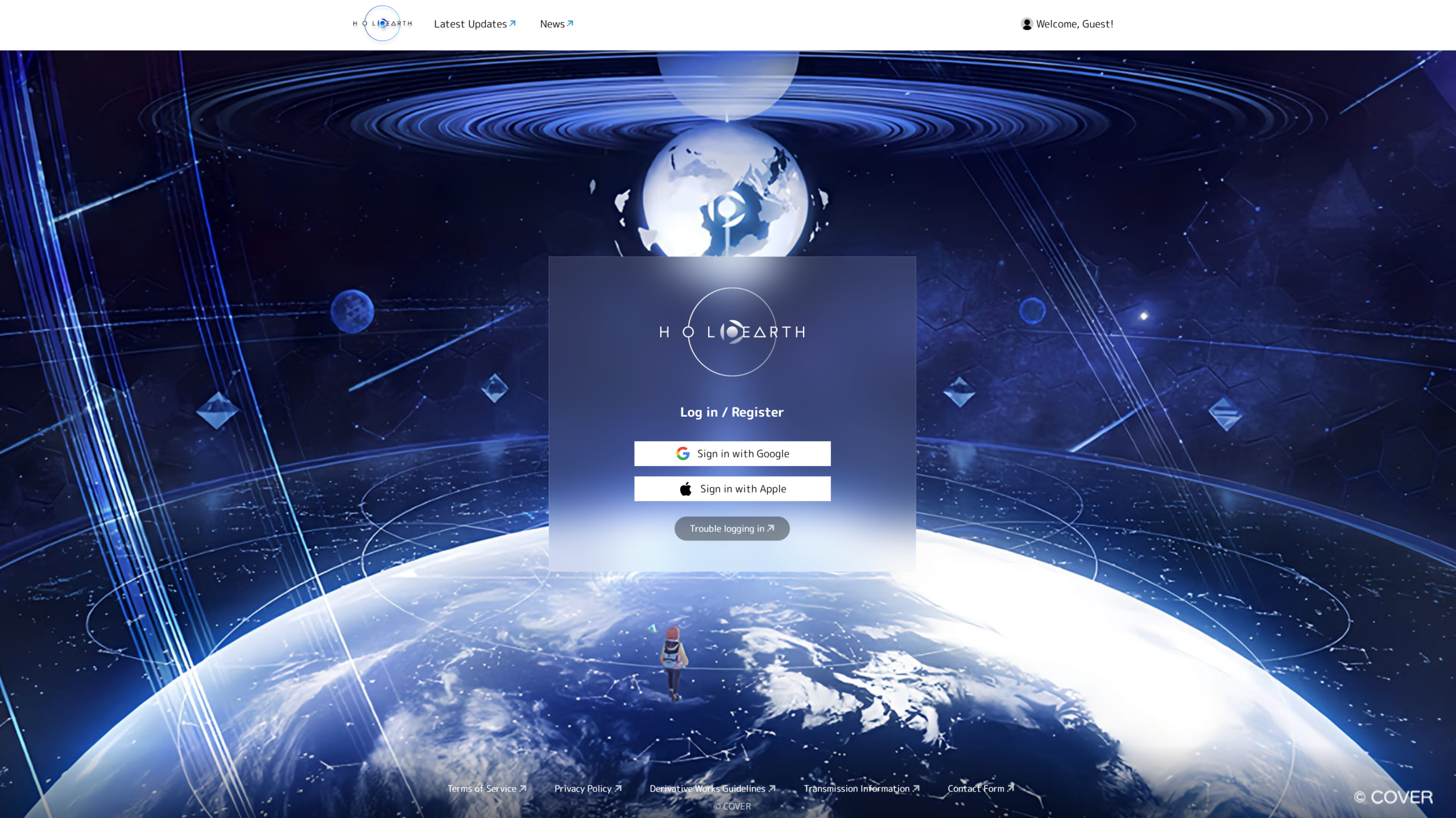
If you do not yet have a Holoearth account, you will be prompted to create one, using either a Google account or Apple ID.
Then, agree to the Terms of Service and Privacy Policy and click Register to finish and log in.
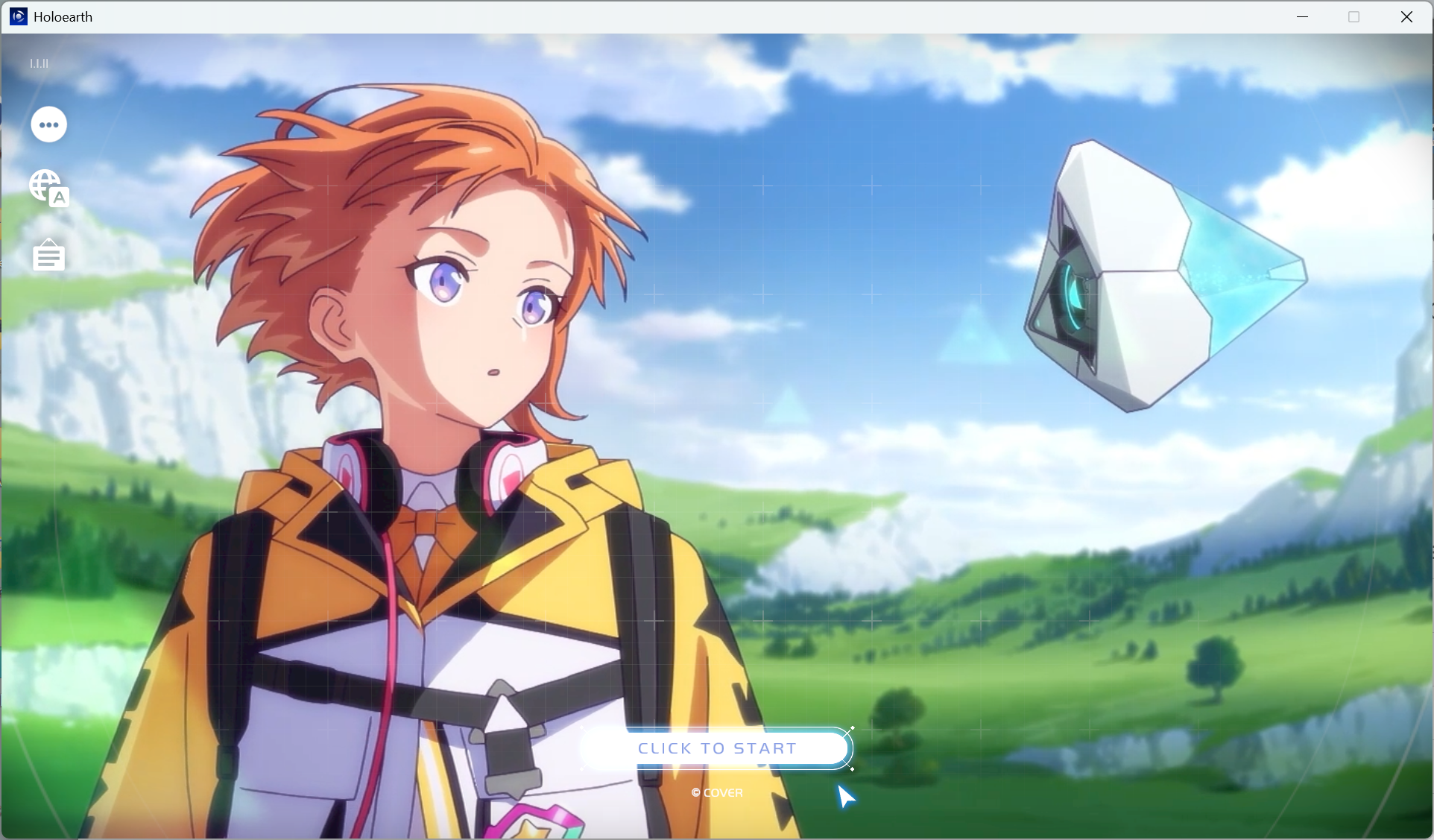
Afterward, when Holoearth is installed and launched correctly the title menu will show the animated PV, “Now, discover your other world,” and prompt you to “CLICK TO START.”
2: Making an Avatar
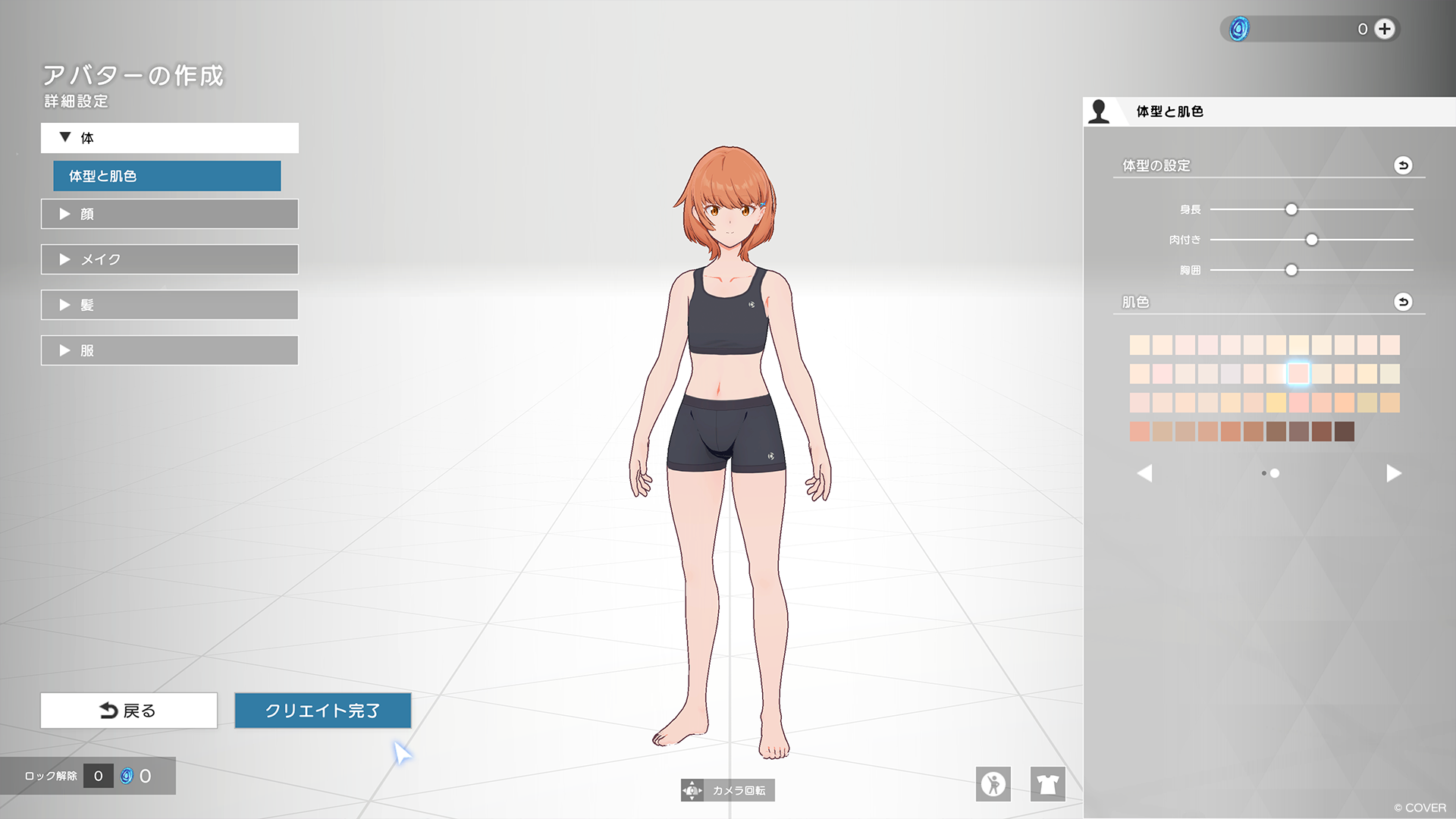
On starting Holoearth for the first time, you will be asked to create your own avatar.
Choose from a range of eyes, hairstyles, build options, skin tones, and more to create an avatar to your liking.
You can change your avatar freely in Holoearth later, so feel free to think more about it later!
3: Using Holoearth
After creating an avatar and entering Holoearth, you can control your avatar using a mouse and keyboard.
■ Controls
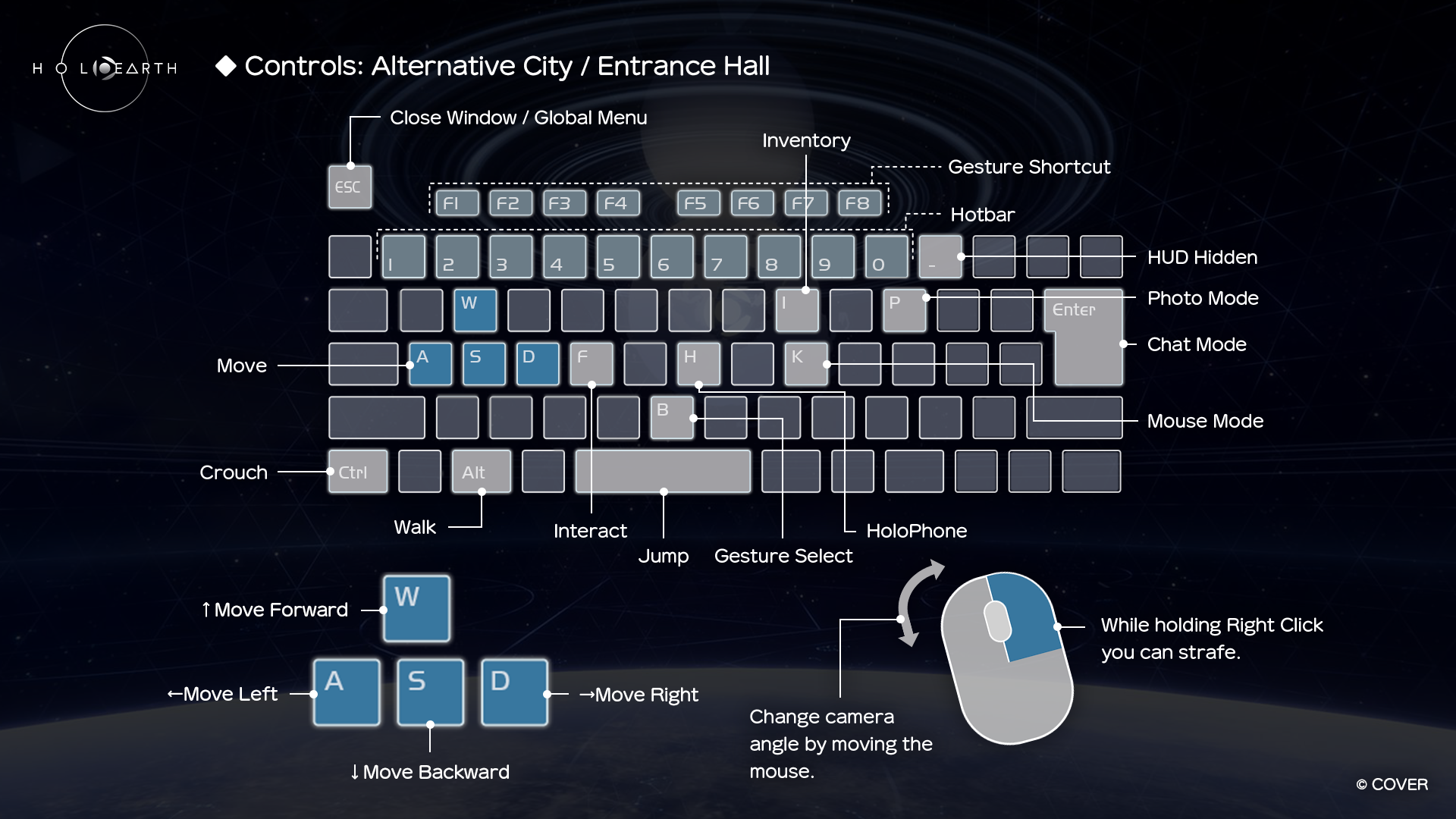
The above controls can also be confirmed in-app via the HoloPhone menu (H key) by selecting “Help.”
■ Character movement
Move your avatar with WASD.
Press Space to jump.
Change camera angle with the mouse.
■ Camera manipulation
Zoom with the mouse wheel.
Right click & drag to rotate your avatar.
■ Opening menus
Esc brings up the global settings menu.
H opens the HoloPhone menu.
Tab opens inventory.
4: Purchase the ID Holder Item
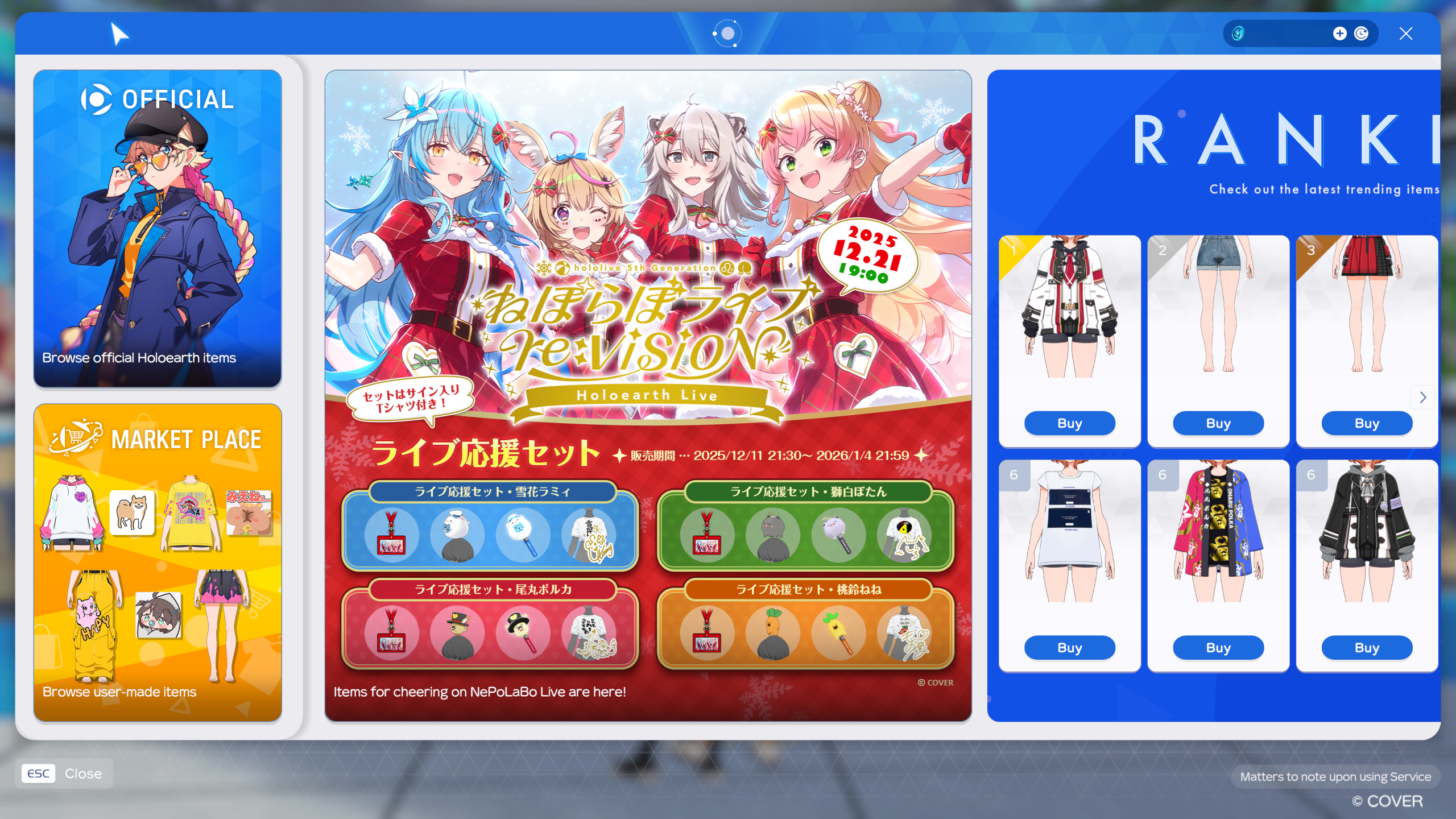
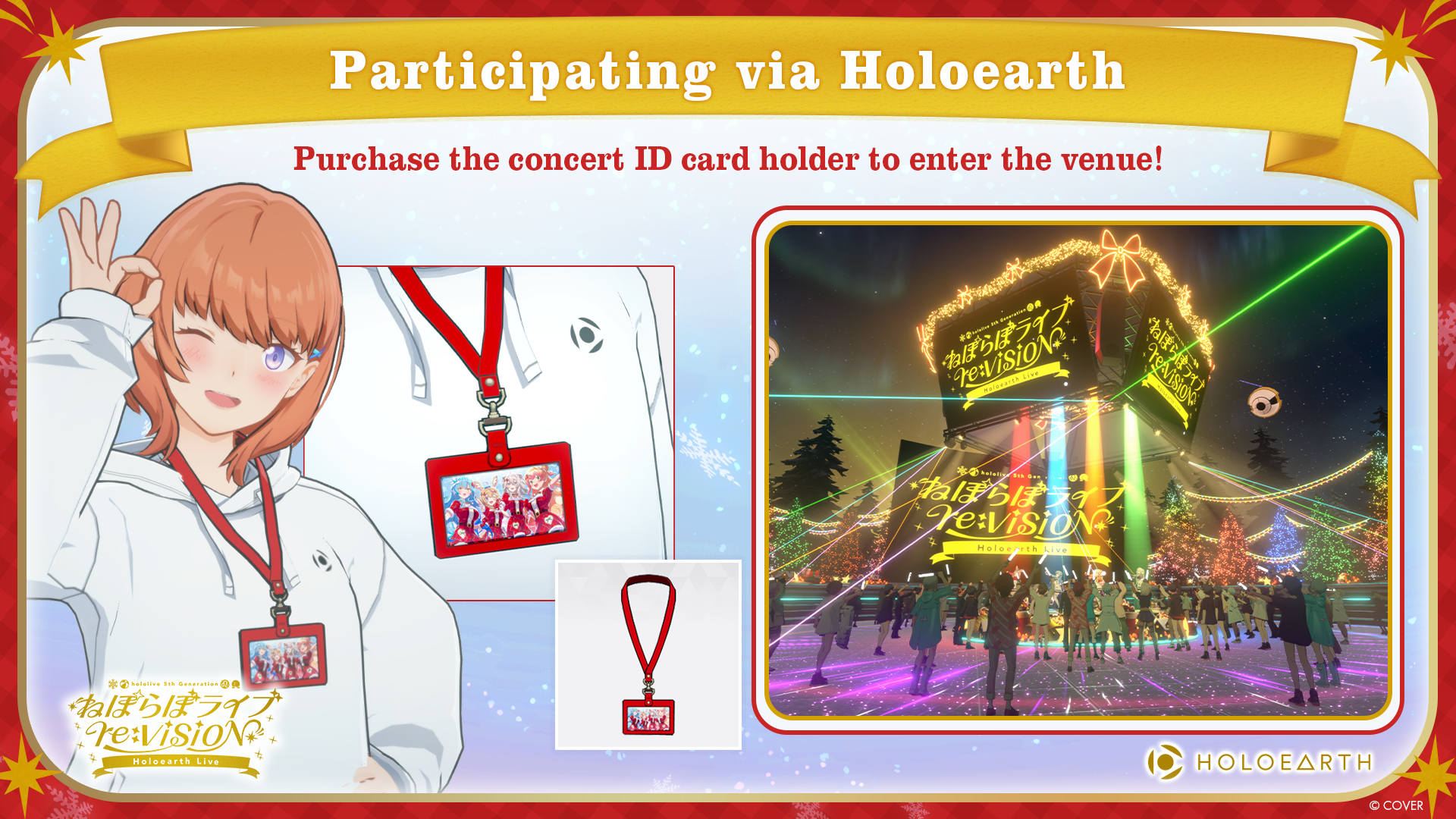
It is necessary to purchase the in-app “NePoLaBo Live re:VISION ID Holder” in order to participate in NePoLaBo Live.
Purchase process
1. Choose Shop from the HoloPhone menu.
2. Purchase the event ID Holoder item.
Note: This item is also included in the NePoLaBo Cheer Set bundles.
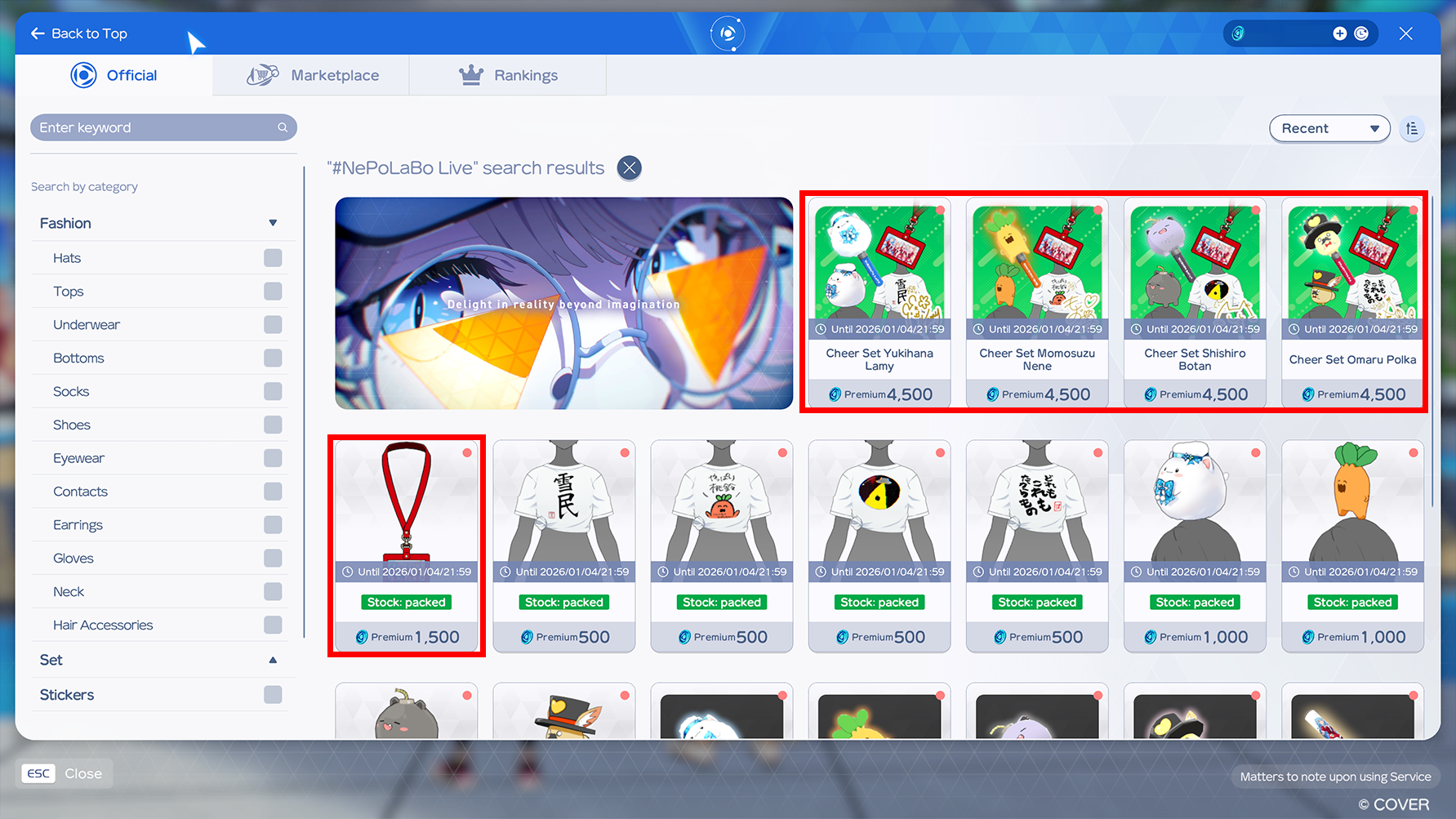
After purchasing, you will be able to enter the concert venue in Holoearth.
Note:
You do not need to equip the ID Holder in order to enter the venue.
The NePoLaBo Live venue will open from 18:00 (JST) on Dec 21 (Sun), and will not be available until that time.
It can also be purchased from a web browser.
5: How to Move to the Live Venue on Dec 21
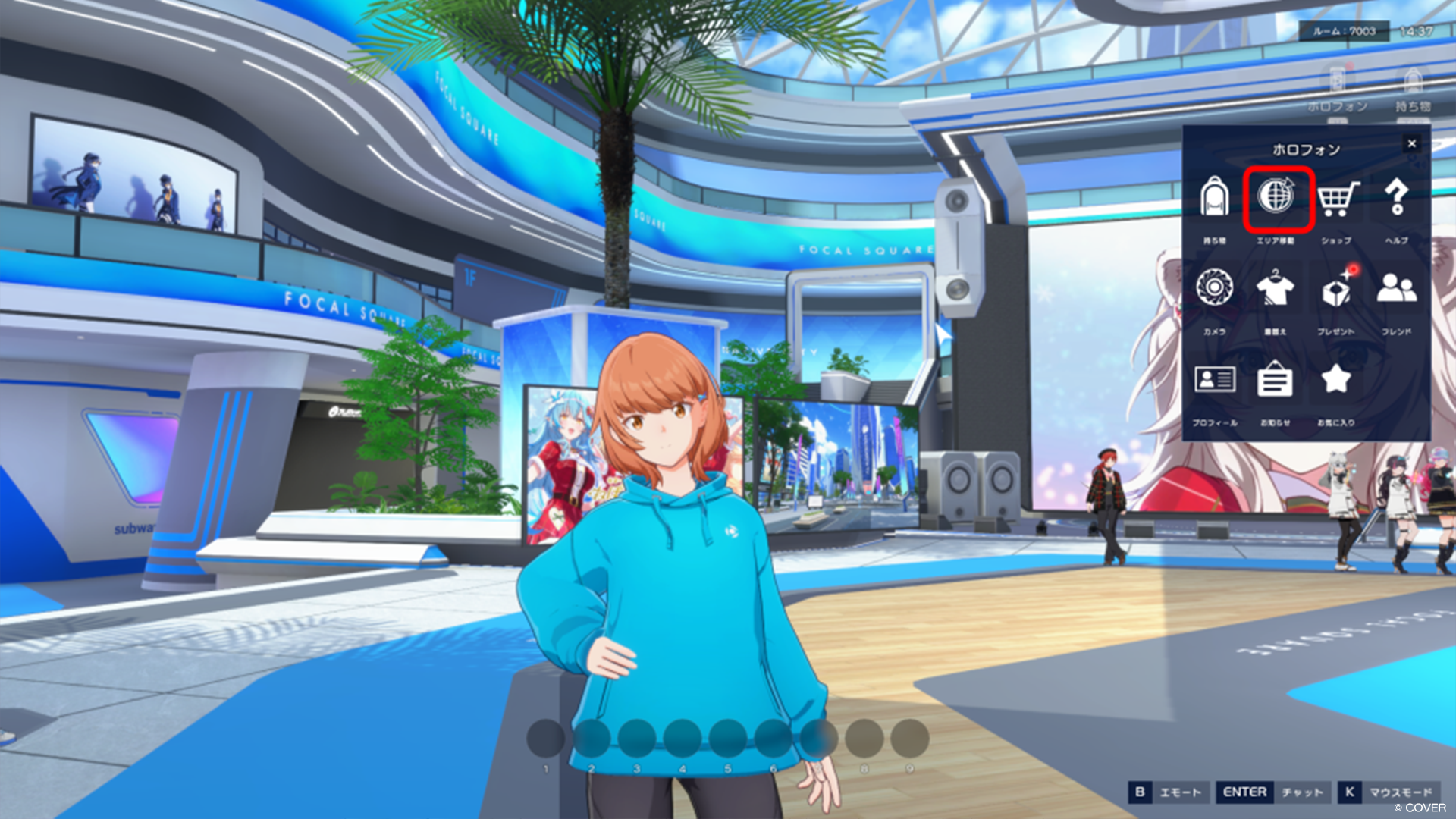
1. Press H to bring up the HoloPhone menu and select “Change Area.”
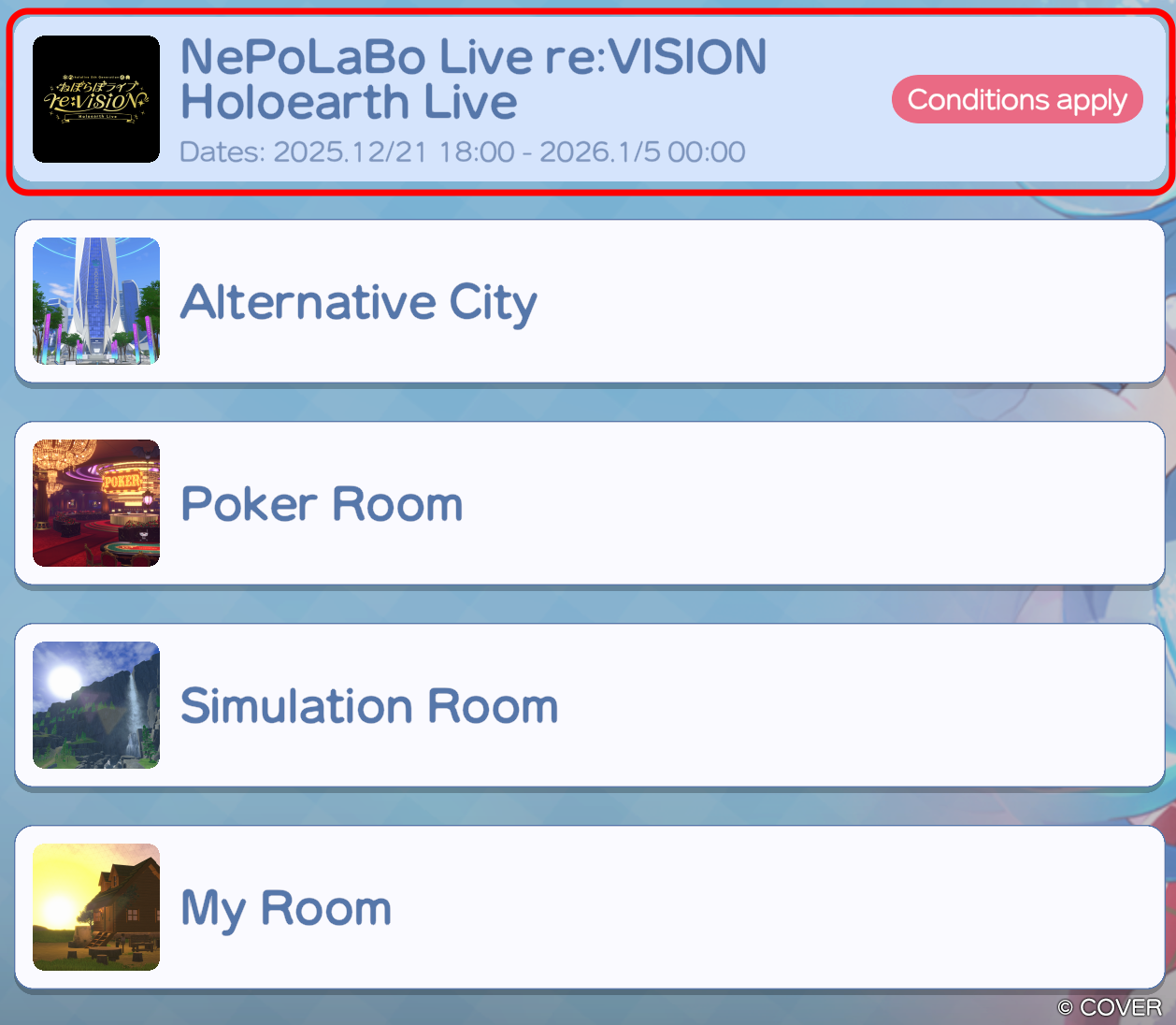
2. From the Area List, select the “Holoearth Live” area and click “Go.”
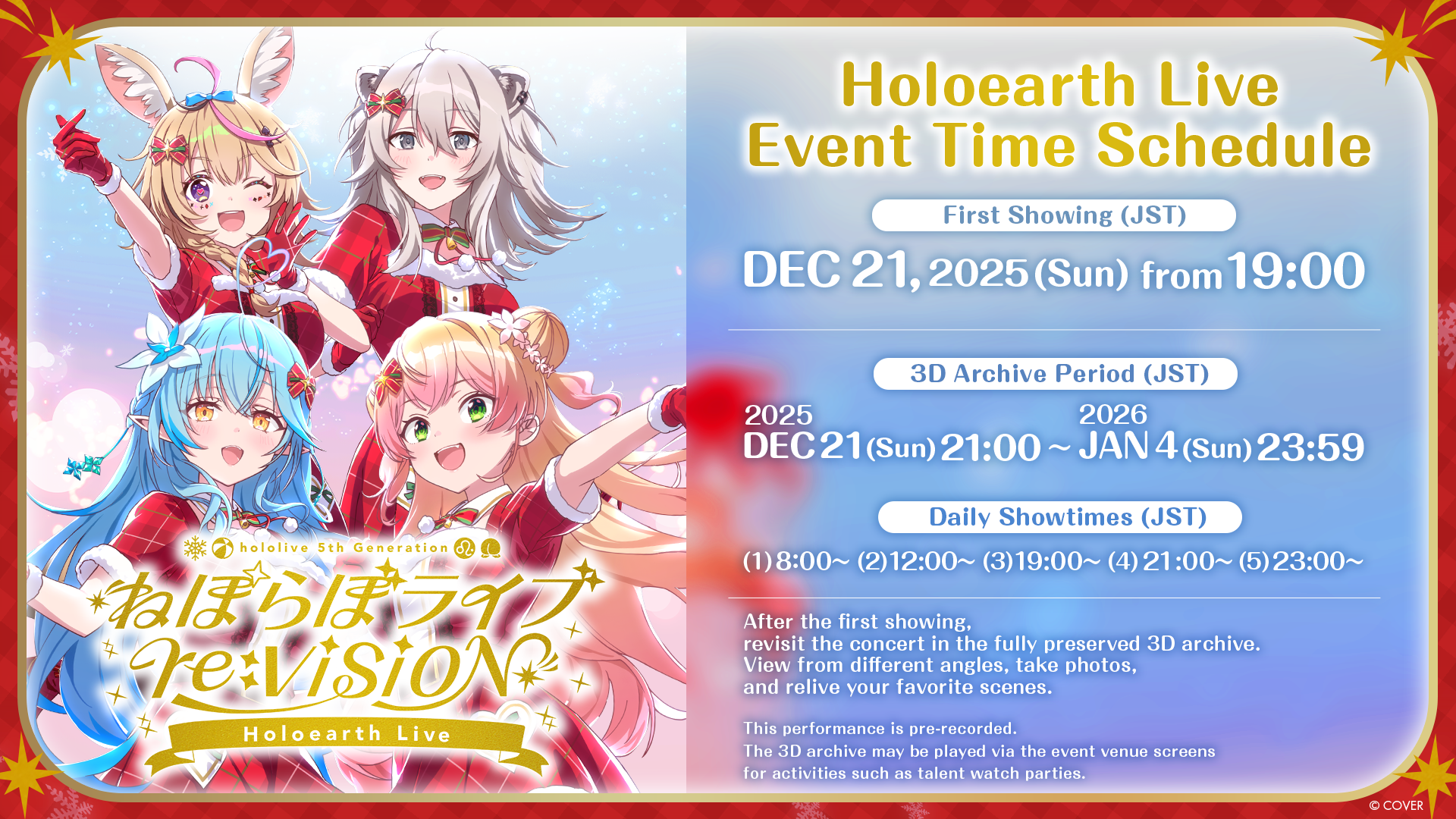
Those who purchased the ID Holder will be able to also participate in the 3D archive after the first showing.
Explore the event from different angles, take photos, and relive your favorite scenes.
The 3D archive is shown at certain times of day during the archive viewing period according to the following daily schedule:
Daily showtimes (JST) between Dec 21, 21:00 (JST) – Jan 4, 23:59 (JST)
(1) 08:00~ (2) 12:00~ (3) 19:00~ (4) 21:00~ (5) 23:00~
Note: The 3D archive may be played via the event venue screens for activities such as talent watch parties.
NePoLaBo Live special website.
Note: See the Holoearth FAQ here.
6: More Tips for a Better Experience
Point 1
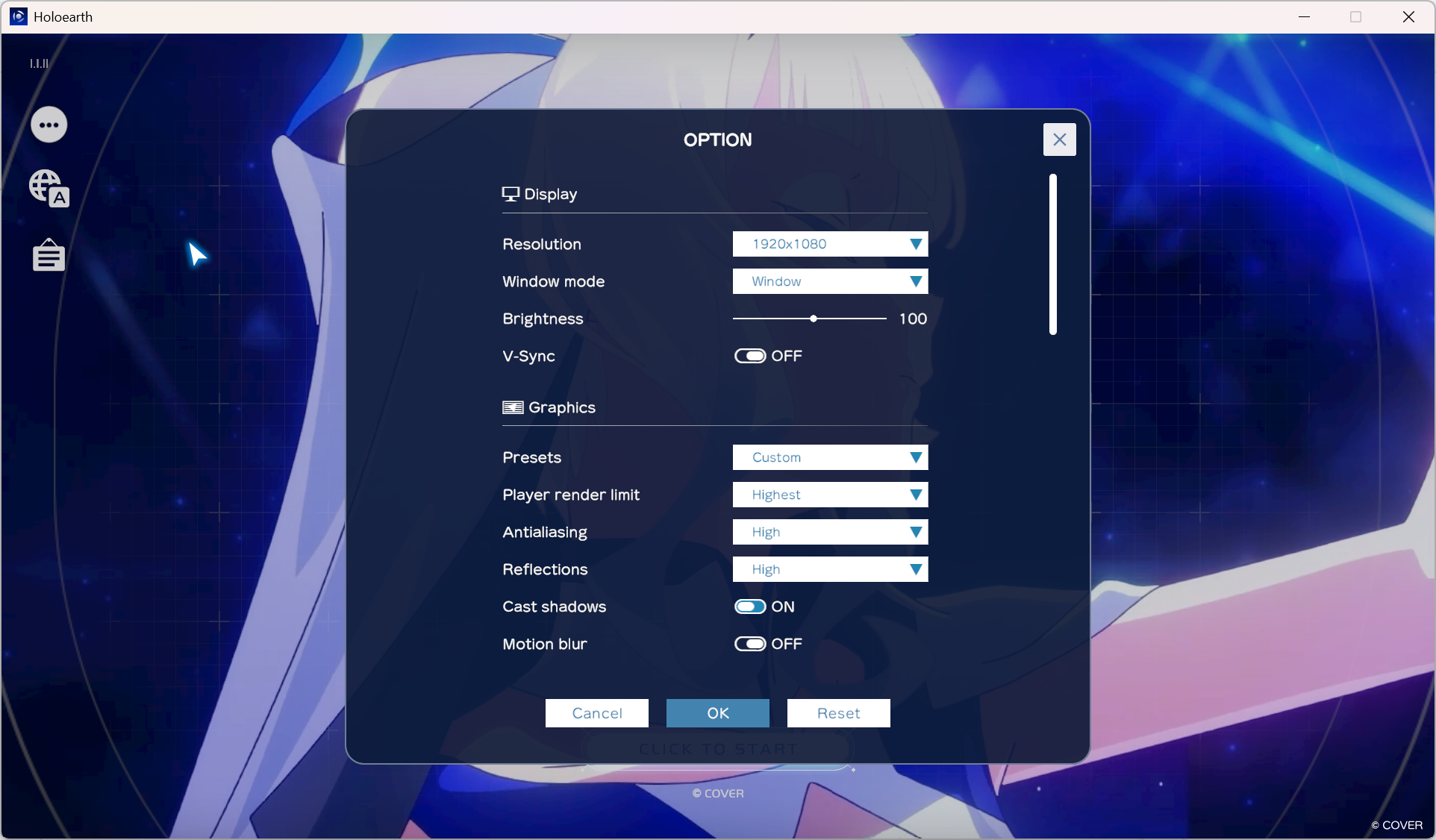
If you still experience issues after starting Holoearth, from the title screen hit Esc for global options and go to Graphics and try lowering the presets. You can also try lowering the detailed graphics settings such as player render limit and reflections.
Point 2
By hitting the minus (“-“) key, you can hide the entire UI hud display to get an unobstructed view of the concert!
And that wraps it up for getting started with Holoearth and participating in NePoLaBo Live. Next time, I will share tips on how to get the most out of the Holoearth concert experience, so please look forward to it!
See more in the Holoearth FAQ.