

Hi there!
This is Anna Rocca from the Holoearth Tourism Agency.
For today’s guide, I will introduce ways to better utilize Holoearth to improve your experience for NePoLaBo Live—enjoy using event items and gestures with everyone to really liven up the show!
Please continue reading to be fully prepared for the day of the event!
I will cover the following four categories this time:
1. Interacting with other users with gestures.
2. Using penlights with gestures.
3. Adjusting options settings for a better experience.
4. Using Photo Mode and participating in the photo contest.
5. Adjusting “Visuals” for a better experience.
For those who want a primer for getting started and experiencing NePoLaBo Live:
▶First guide for NePoLaBo Live
▶NePoLaBo Live special website
1: Setting Gestures
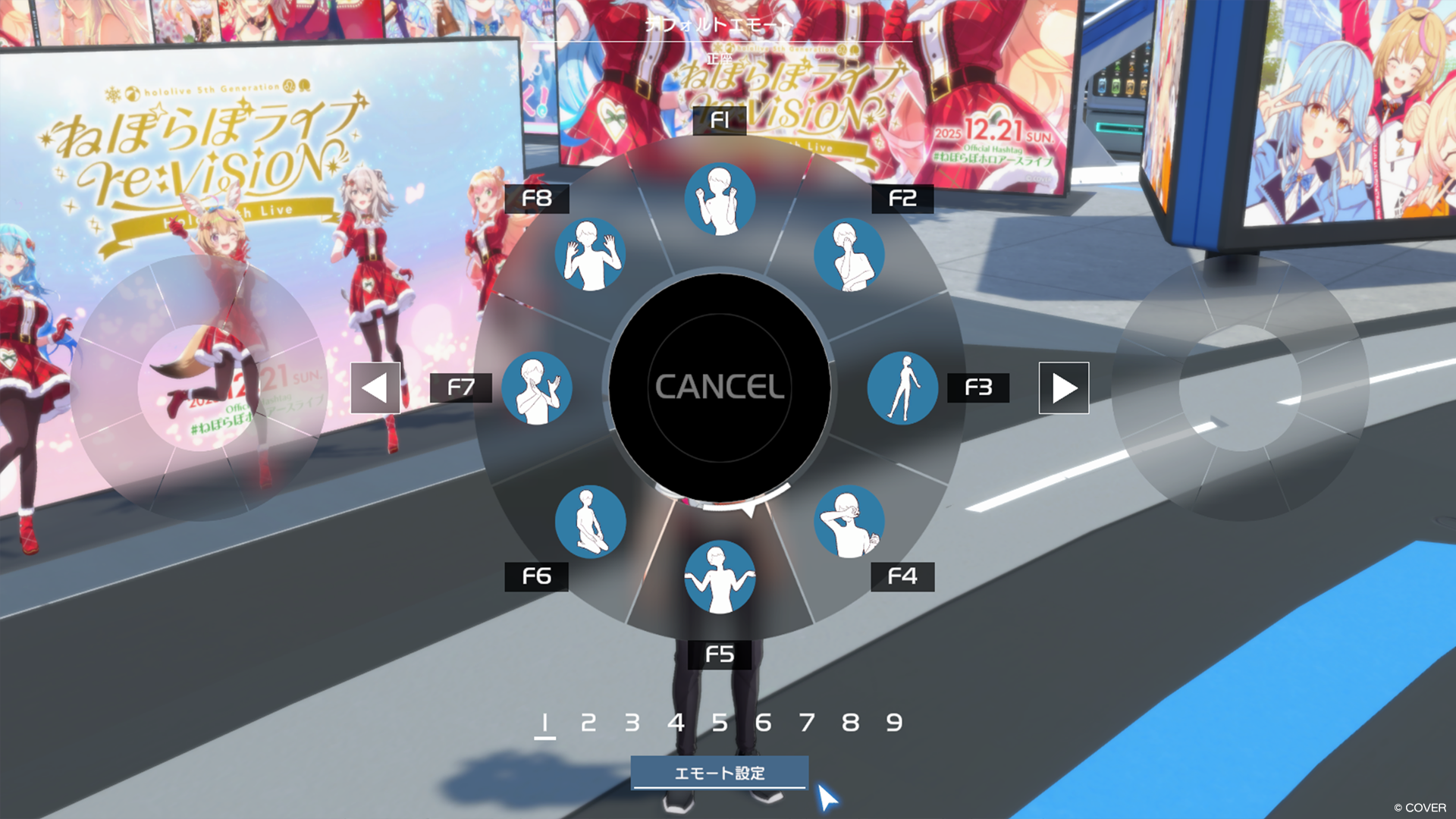
One way to communicate with other users in Holoearth is with gestures.
Press and hold the B key to open the gesture setup screen.
Click “Edit gestures” to display a list of gestures you have purchased, then drag and move the ones you want to set.
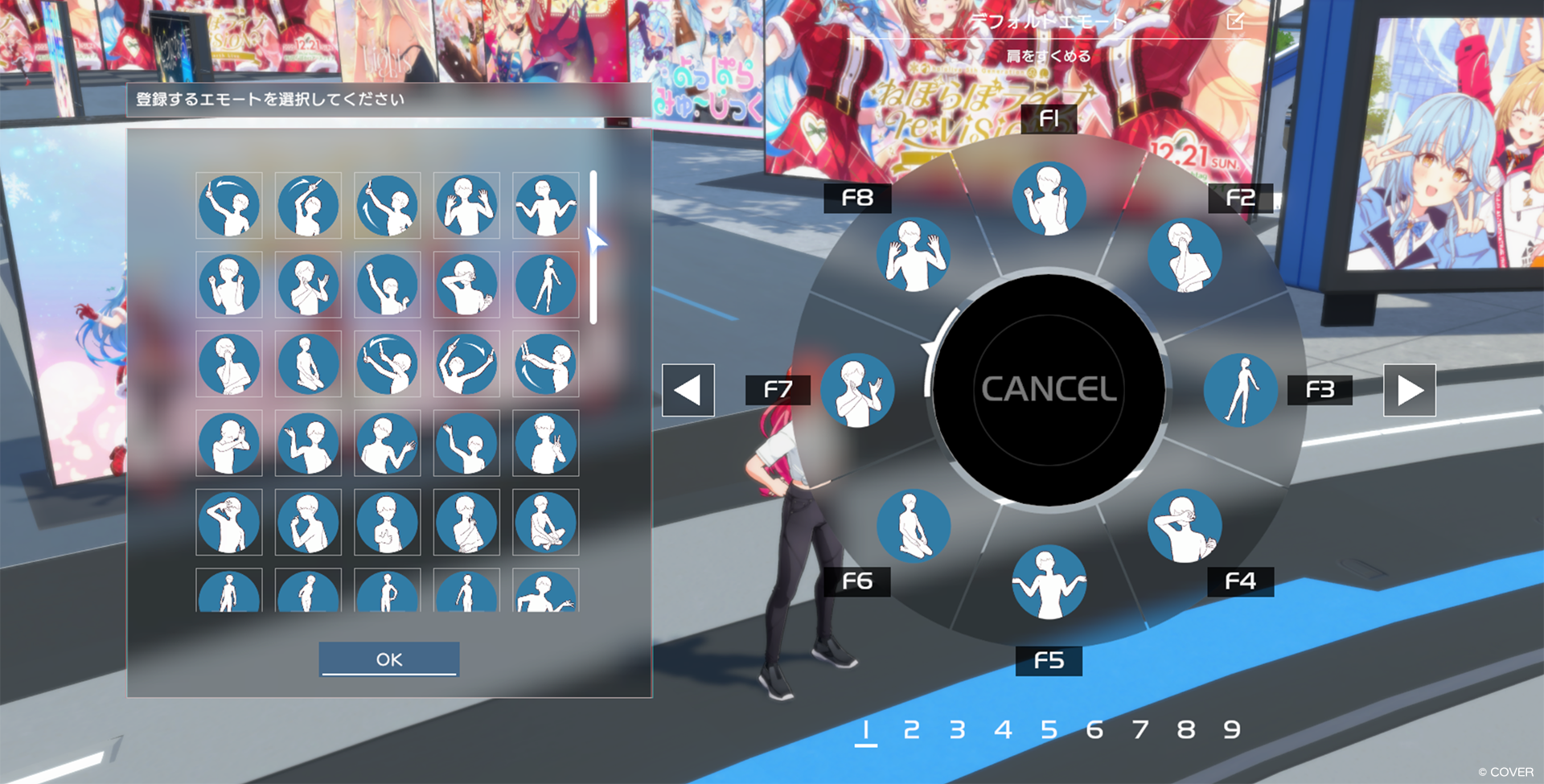
You can set up a total of 9 sets of gestures, each using the F1-F8 keys, so try switching between them depending on the situation.
2: Using Penlights
You can wave penlights by combining them with gestures. You can set penlight items you have purchased in the hotbar at the bottom of the screen to make them faster to use.
After doing this, click the shortcut button or press the corresponding keyboard number to use it.
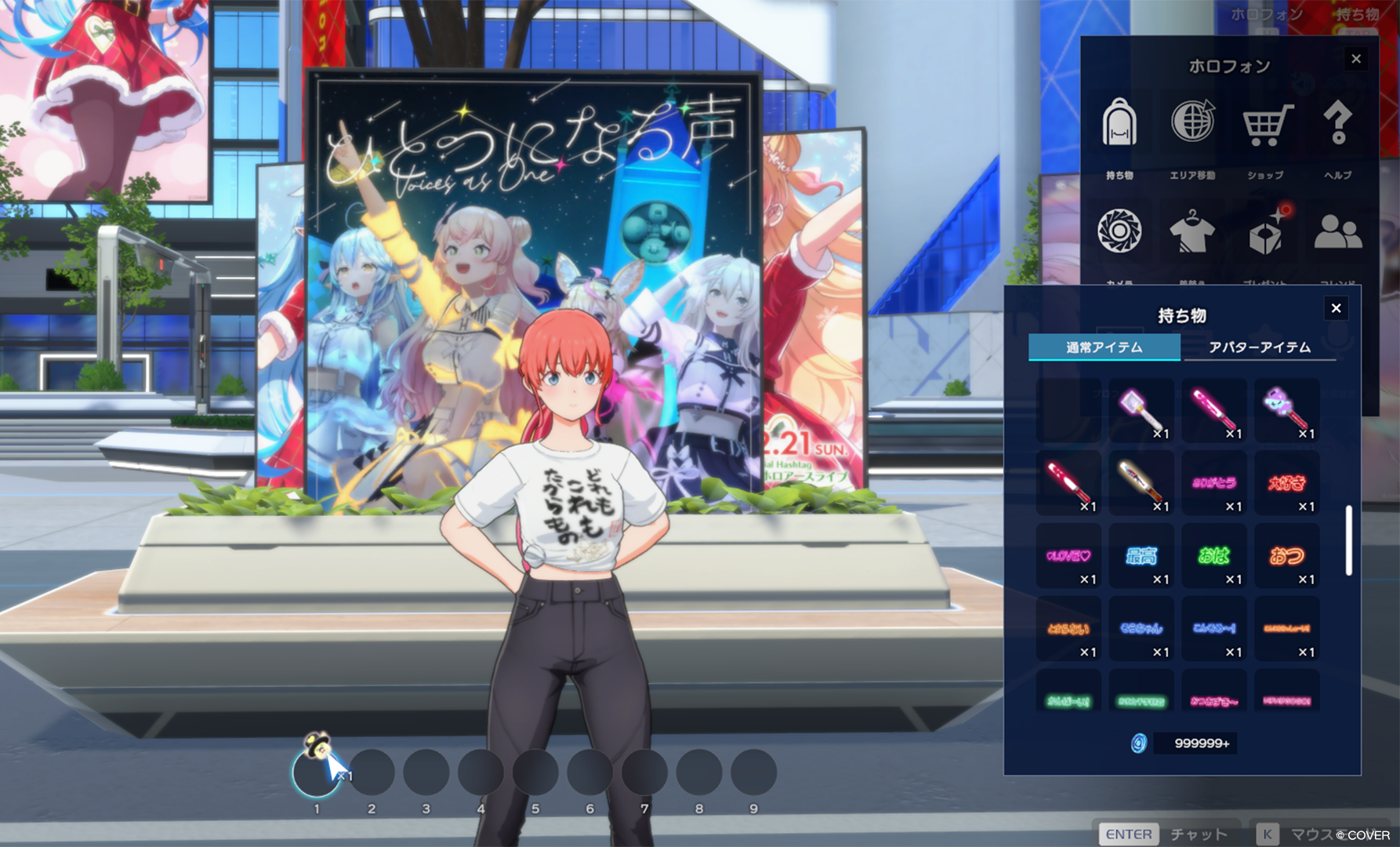
By combining it with gestures such as those in the “Hype Up” series, you will be able to wave the penlights.
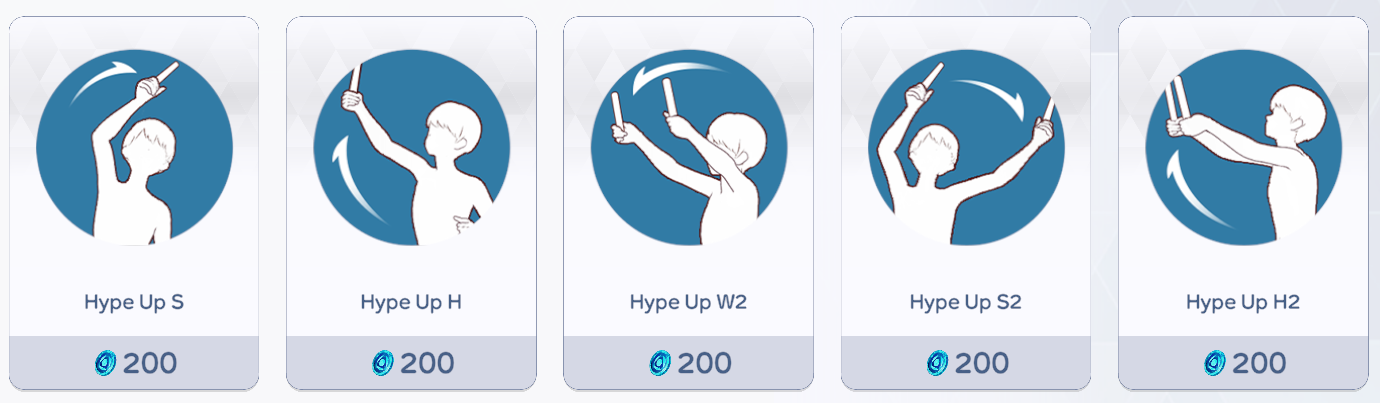
Cheer for your oshi with your own combination of moves using other gestures!
3: Audio Settings
Adjusting audio settings is also useful for making the most out of a concert experience.
Press the Esc key to open the global options menu, then check the Sound section.
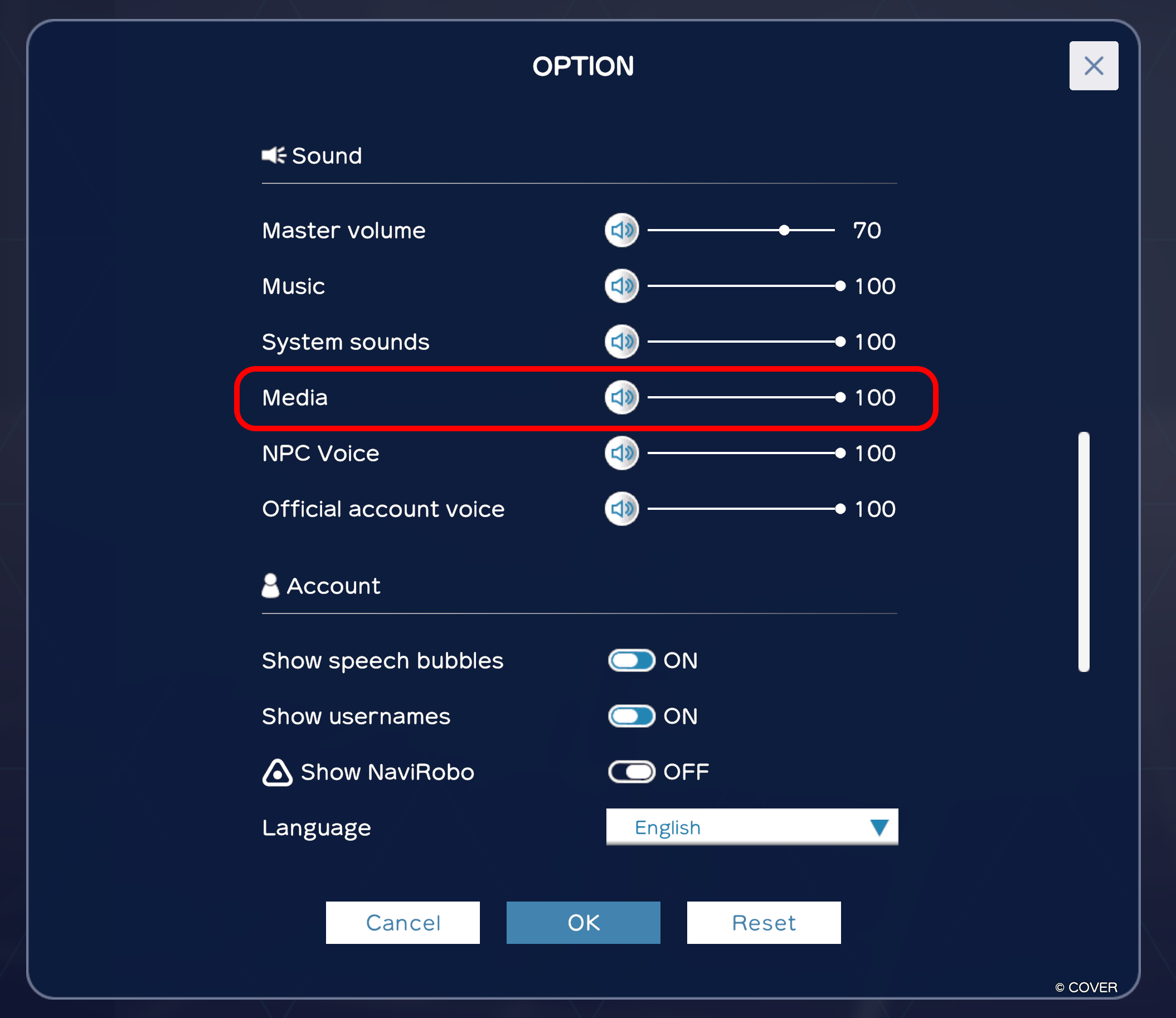
By adjusting the Media volume, you can change the volume of the performance.
Set it to a level that feels comfortable for you and enjoy the show!
4: Photo Mode
For NePoLaBo Live, photography is allowed. You will want to capture a special memory of your own, right?
Press P to switch to Photo Mode. Since you can shoot from many different angles, it offers more flexibility than a standard screenshot.
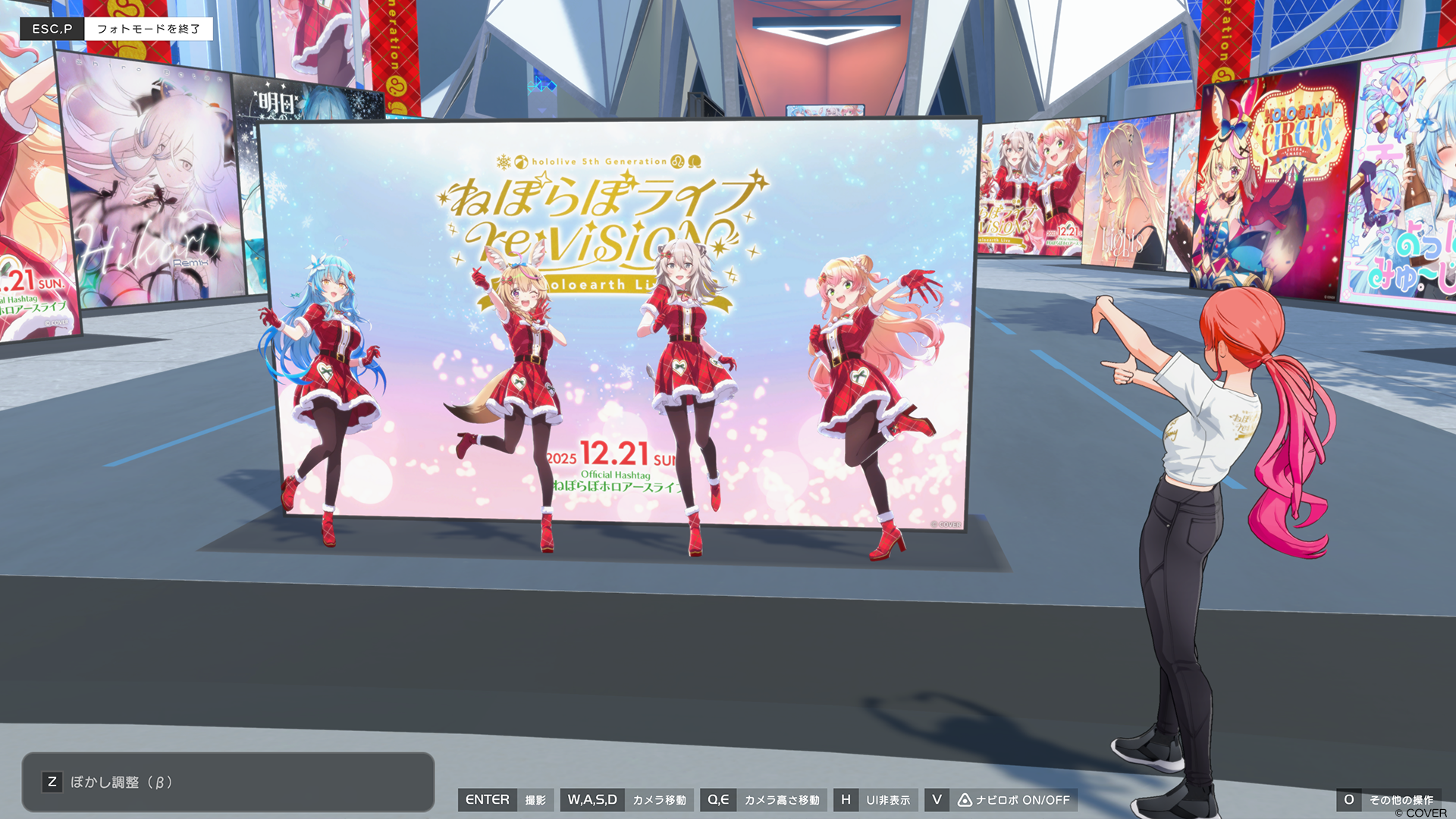
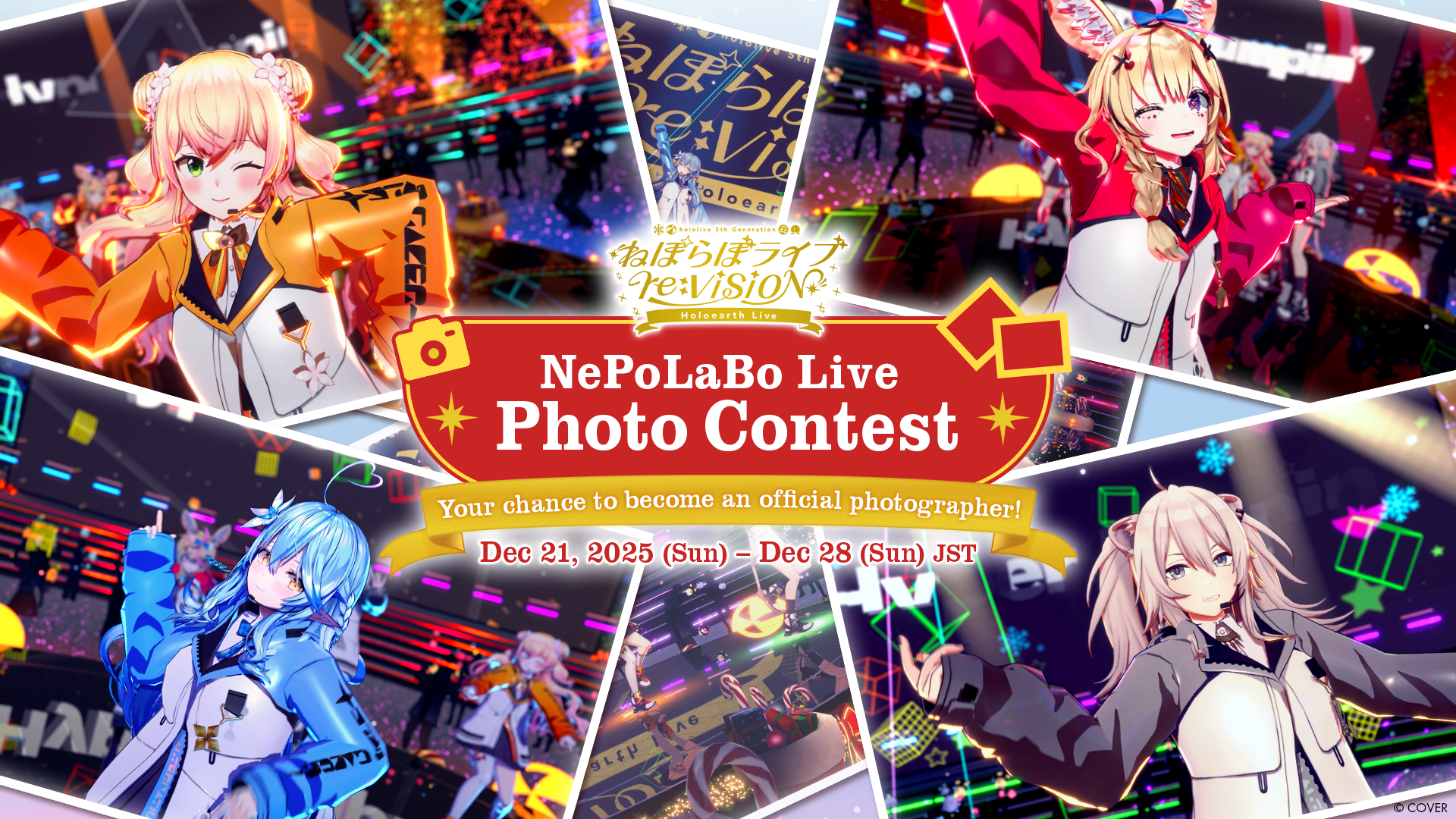
Also, a photo contest is planned for the NePoLaBo Live!
Try posting your best shots on X with the hashtag #NePoLaBoHoloearthLive.
Your photo might be featured on the official website, or you could even receive a special gift…
For more details, check the URL below!
5: Visuals Settings
In the event venue, usernames and chat bubbles will be turned OFF.
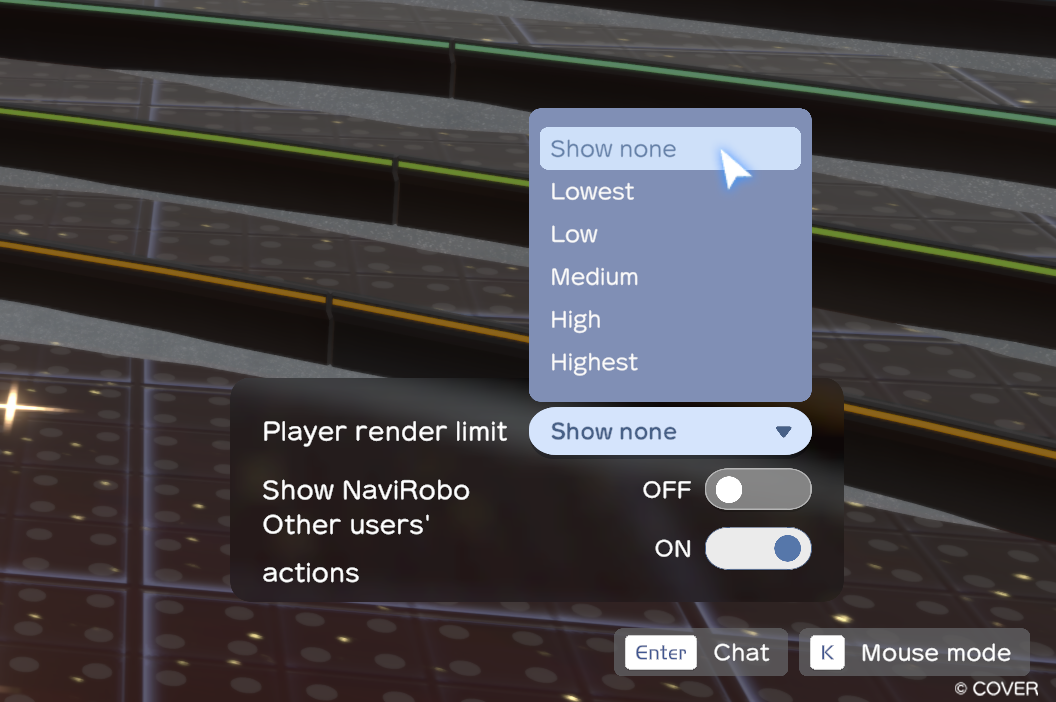
Additionally, by pressing O, you can access “Visuals” settings.
Here, you can toggle features like “NaviRobo Display,” “Other Users’ Actions” (such as poppers or fireworks), and adjust the number of player models rendered in the area.
Enjoy the performance in a way suited just for you!
See more in the Holoearth FAQ.
Inquiry form (also available in Holoearth).